
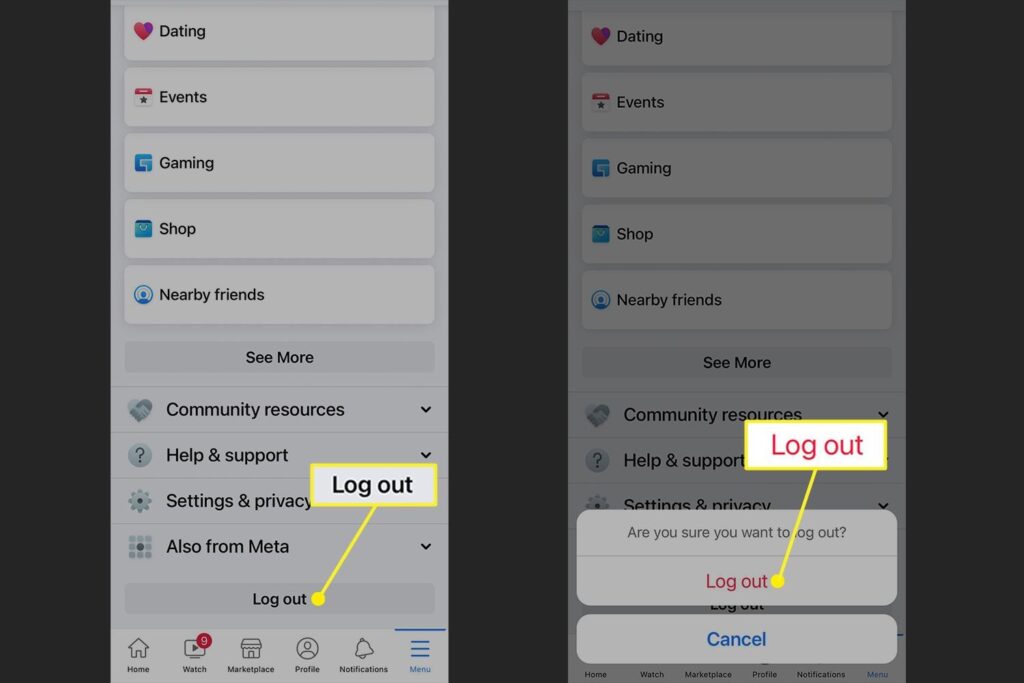
How to Change Accounts on Facebook: Open the menu, tap your profile picture or name at the top, and select the other account you want to use from the list that appears. The platform allows you to switch between multiple profiles instantly without logging out completely, provided you have already added them to your device. This guide covers every method for desktop browsers, mobile apps, and the Accounts Center.
Key Takeaways
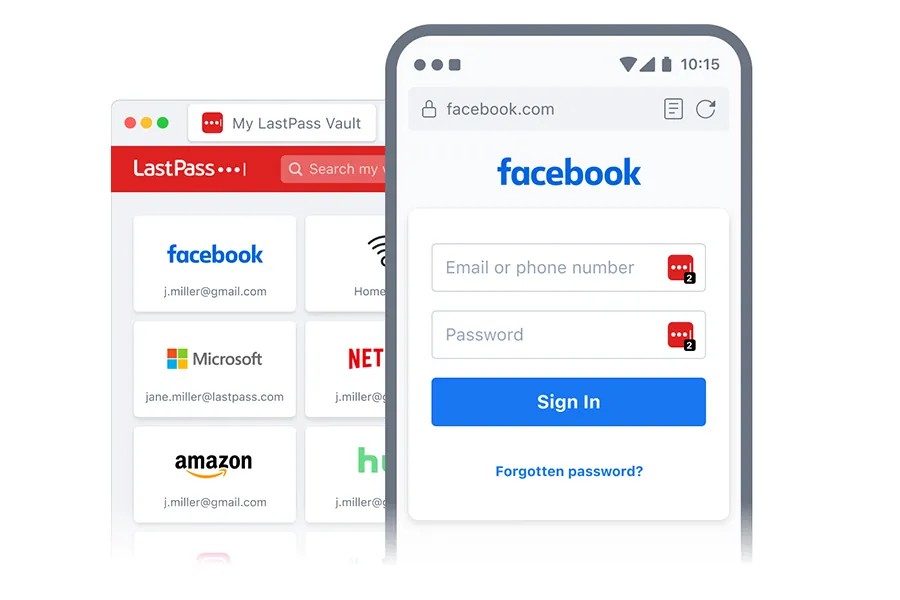
- Tap your profile picture in the top corner of the Facebook app or website to access the switching menu.
- You can add up to ten different accounts to a single device for quick switching.
- Use the Accounts Center to link profiles together so they share one login session.
- Switching accounts doesn’t merge your data; each profile keeps its own friends, posts, and messages separate.
- If an account is missing from the switcher, you must log into it manually once to save it to the device.
- Removing an account from the switcher only logs it out locally; it doesn’t delete the actual profile.
How to Change Accounts on Facebook
The process for changing accounts depends entirely on whether you’re using a smartphone or a computer. Meta designed the interface differently for each environment, but both rely on saving your credentials locally so you don’t have to type your password every time. Below is a breakdown of where the switching controls live across devices.
| Device Type | Where to Find the Menu | Action Required to Switch |
|---|---|---|
| iPhone App | Bottom right menu bar | Tap your profile icon, then select the target account |
| Android App | Top right corner | Tap the downward arrow or profile picture, then choose the account |
| Desktop Browser | Top right navigation bar | Click the profile circle, select “See all profiles” or the specific name |
| Mobile Browser | Top right hamburger menu | Tap the menu icon, scroll down, and select the alternate profile |
Understanding these locations prevents confusion when moving between an iPad, a Samsung phone, or a Windows laptop. The core mechanic remains identical: authenticate once, store the token, and swap freely.
Switching Profiles on the Mobile App
Most users manage their social lives through the dedicated application on iOS or Android. Changing accounts here takes exactly two taps if both profiles are already saved to your device.
Using the Profile Switcher
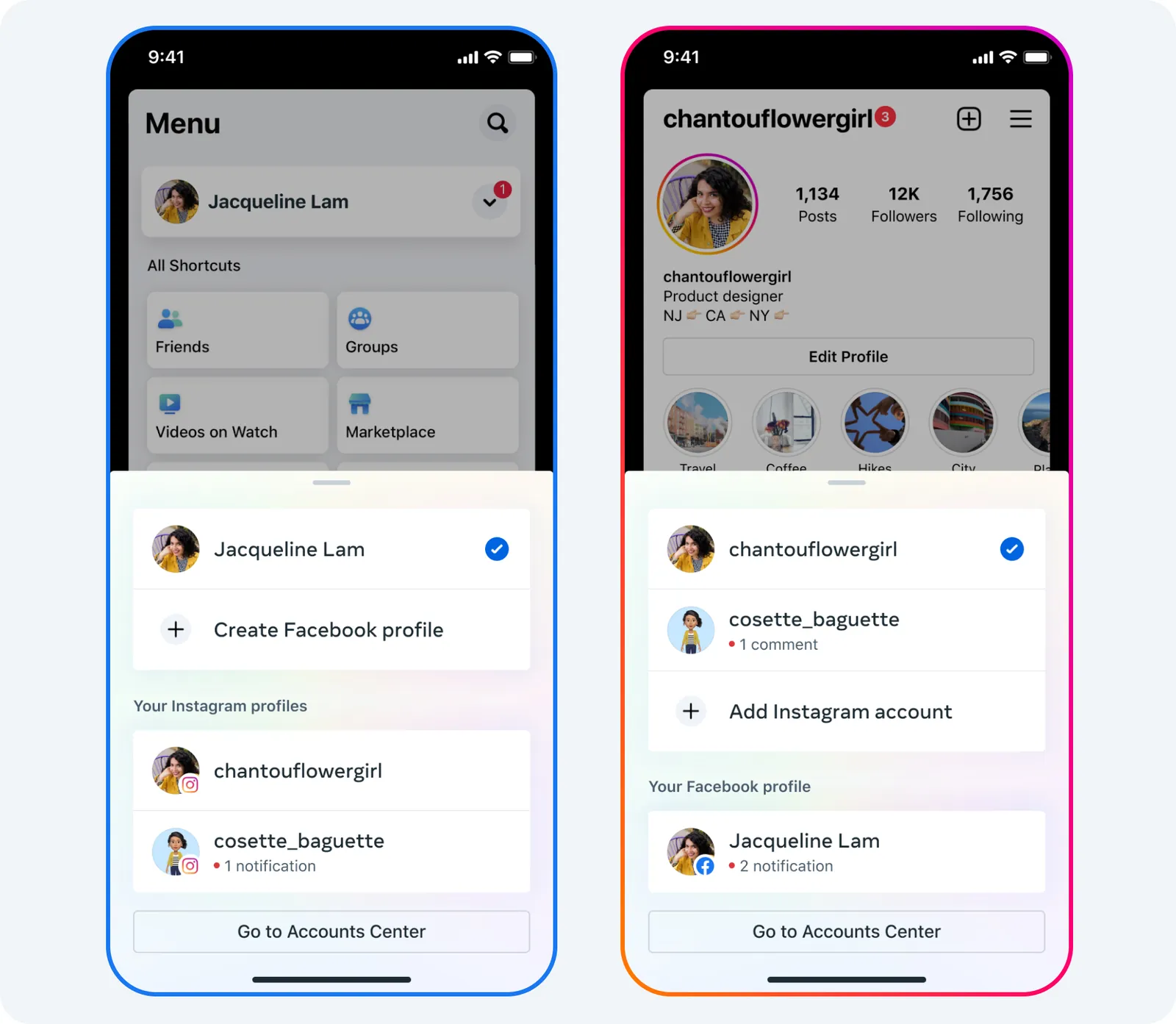
Open the Facebook app and locate your current profile picture. On iPhones, this sits in the bottom right corner. On Android devices, it usually rests in the top right. Tap that image. A small menu will slide up or expand, displaying any other accounts currently logged in on that specific phone.
Tap the name of the account you wish to use. The screen will refresh briefly, and you’ll be operating as that second user. Your notifications, news feed, and Messenger inbox will update to reflect the newly selected identity.
Adding a New Account
If the account you want to use isn’t listed in that menu, you need to add it first. Tap your profile picture, then look for the option labeled “Log into another account” or the three horizontal lines next to your name. Select “Add Account.” Enter the email address or phone number and the password for the second profile. Once authenticated, Facebook saves this credential locally. From now on, it will appear in the quick-switch menu alongside your primary profile.
Changing Accounts on a Desktop Browser
Working from a Mac or PC requires navigating the web interface, which places the account controls in a slightly different spot than the mobile app.
Click the circular profile icon located in the top right corner of the Facebook homepage, next to the Messenger and notification bells. A dropdown panel will appear. At the bottom of this panel, you’ll see an option that says “See all profiles” or simply lists your secondary account’s name with a small swap icon next to it. Clicking that name immediately transitions the browser window to the other account’s feed.
If you manage a personal profile and a business page, the wording might differ slightly. You may see “Switch profile” instead. The mechanics are the same. The browser stores a secure cookie for each authenticated session, allowing instant transitions without reloading the entire authentication framework.
Pro Tip: If you frequently switch between a work profile and a personal profile on a shared family computer, always use separate browser profiles (like distinct Chrome or Edge profiles) rather than just the Facebook switcher. This prevents someone else from clicking your face in the switcher and accessing your private messages while you’re away from the keyboard.
Linking Accounts Through Accounts Center
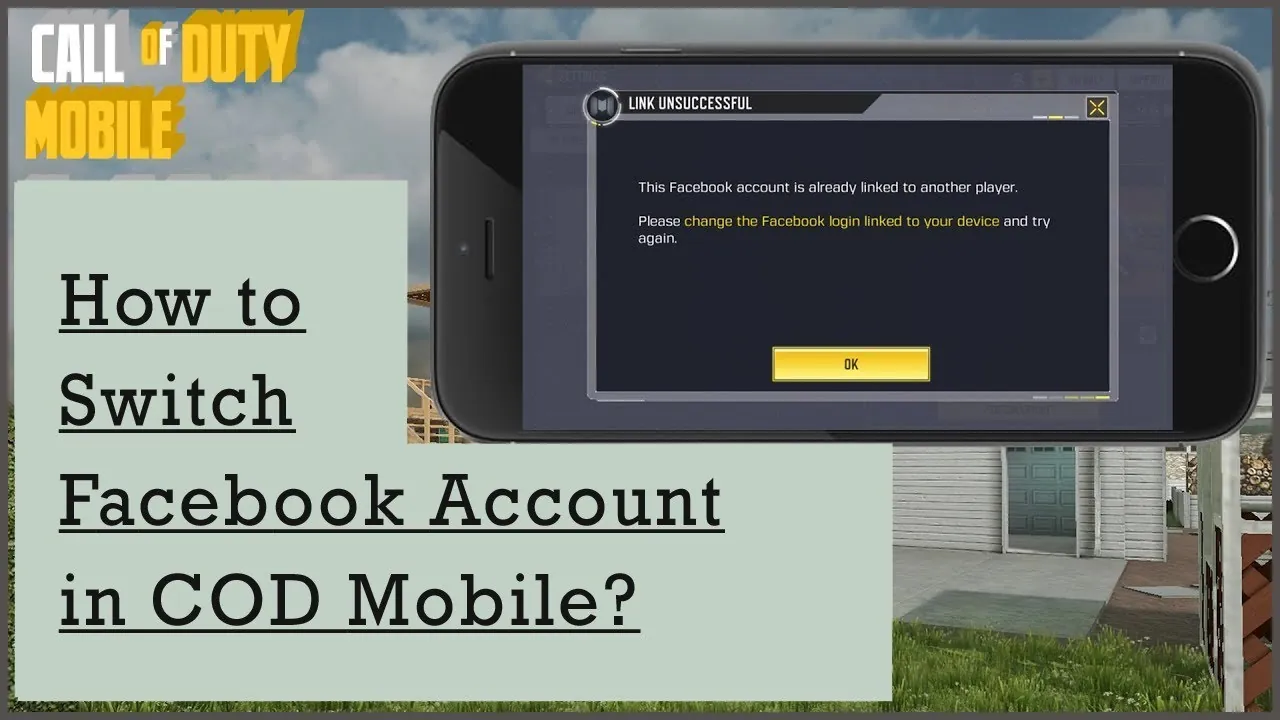
Meta introduced the Accounts Center to unify how users manage their digital identities across Facebook, Instagram, and Messenger. Instead of treating every login as a separate event, this hub lets you connect profiles so they recognize each other automatically.
To access it, go to your Settings & Privacy menu, click Settings, and find the Meta Accounts Center box, usually at the very top of the left sidebar on desktop or the top of the screen on mobile. Inside, you’ll see a section called “Profiles.” Here, you can add existing Facebook accounts or Instagram handles.
Once linked, logging into one account can optionally log you into the others, depending on your security preferences. This is particularly useful for creators who maintain a personal presence and a professional brand simultaneously.
| Feature | Standard Login | Accounts Center Linked |
|---|---|---|
| Password Entry | Required for every new account | Often required only once per session |
| Cross-App Posting | Manual copying and pasting | Native sharing between FB and IG |
| Security Alerts | Sent to individual emails | Centralized alerts for all connected profiles |
| Setup Time | Seconds per account | A few minutes initially, saves time later |
For detailed instructions directly from the company, you can review the official Meta Accounts Center setup guide, which explains exactly how permissions are shared when you link multiple profiles together.
Managing Multiple Pages Versus Profiles
It’s crucial to understand the difference between a Facebook Page and a Facebook Profile, as the switching process varies significantly between the two.
A personal profile represents an individual human being. It has friends, a personal timeline, and private messaging capabilities. You can now create multiple personal profiles under one main login, a feature Meta rolled out recently to help people separate their hobbies from their daily lives.
A Facebook Page represents a business, public figure, or organization. Pages don’t have passwords of their own; they’re managed by personal profiles acting as administrators. To switch from your personal profile to a business Page, you use the exact same profile switcher menu described above. However, the interface changes dramatically. When acting as a Page, you can’t send friend requests, and your interactions on public posts will bear the Page’s name and logo rather than your personal ones.
Many users confuse adding a Page with adding a second account. If you just created a Page for your bakery, you don’t need a new email address or password. You simply click your profile picture in the top right and select the bakery’s name to start posting as the business.
Troubleshooting Account Switching Issues
Sometimes the seamless transition fails. Understanding why helps you fix it quickly without panicking about lost data.
Missing Accounts in the Switcher
If an account you previously used has vanished from the switcher menu, it was likely logged out either intentionally or due to a security timeout. Facebook periodically clears stored tokens if an account has been inactive for an extended period or if the platform detects suspicious activity. To restore it, you must select “Log into another account” and re-enter the full email and password.
App Crashing During Transition
On older smartphones, switching between heavy accounts—especially those loaded with cached videos and images—can cause the app to freeze or crash. Clearing the app cache resolves this. On Android, go to Settings > Apps > Facebook > Storage > Clear Cache. On iOS, offloading and reinstalling the app achieves a similar result, as Apple restricts direct cache clearing.
Warning: Never use third-party applications or unauthorized browser extensions that promise to manage multiple Facebook accounts simultaneously. These tools violate the platform’s Terms of Service and frequently steal login credentials. Stick exclusively to the native switcher built into the official app or website.
Security Considerations When Sharing Devices
Leaving multiple accounts logged in on a single device is convenient, but it introduces privacy risks. If you hand your unlocked phone to a friend to show them a photo, they can easily tap your profile icon and switch to your other account, reading messages meant only for you.
To mitigate this, enable two-factor authentication on every linked account. Even if someone switches to your profile on your device, certain sensitive actions—like changing a password or viewing archived payment methods—will still require a code sent to your phone.
Additionally, consider using the “Lock Profile” feature available in certain regions. This adds a layer of friction, requiring a PIN or biometric scan before someone can view the contents of a specific profile, even if the device itself is already unlocked. Always log out of secondary accounts entirely if you’re lending your device to someone outside your immediate household.
Frequently Asked Questions
Can I have two Facebook accounts on one phone?
Yes, the official Facebook app supports saving multiple accounts simultaneously. You can add up to ten different profiles to the app’s internal switcher. Simply tap your profile picture, select “Add Account,” and log in. Both accounts will remain accessible via a two-tap switching process without needing to re-enter passwords constantly.
Does switching accounts notify my friends?
No, Facebook doesn’t send notifications when you switch between profiles. Your friends won’t know you’re currently logged into a different account. They will only see your activity—such as likes, comments, or status updates—posted from whichever specific profile you’re actively using at that moment.
Why did my second account disappear from the menu?
Accounts typically disappear from the quick-switch menu if you manually logged out, if Facebook invalidated the security token due to prolonged inactivity, or if you changed the password on another device. To get it back, tap your profile picture, choose “Log into another account,” and enter your credentials again.
Is it against the rules to have multiple profiles?
Historically, Facebook strictly enforced a one-profile-per-person rule. However, Meta recently updated its policies to officially allow users to create additional personal profiles under a single main account. These secondary profiles are intended for different interests, like gaming or local community groups, making multiple accounts fully compliant with current guidelines.
Do my Messenger chats switch when I change accounts?
Yes, Messenger is tied directly to your active Facebook profile. When you switch accounts within the main Facebook app, the Messenger app will prompt you to switch as well, or it will automatically update to reflect the newly selected identity. Your chat history remains separated and unique to each specific account.
How do I remove an account from the switcher permanently?
To remove an account from the quick-switch list, tap your profile picture to open the menu. Look for a gear icon or an “Edit” button near the list of saved accounts. Select the account you wish to remove and tap “Remove” or “Log Out.” This deletes the saved login token from your device without deleting the actual Facebook profile.
Conclusion
Now that you know how to navigate between your profiles, take a moment to review the privacy settings on each one individually. Open the Settings menu for your secondary account and verify who can see your future posts, ensuring your distinct audiences stay properly separated.